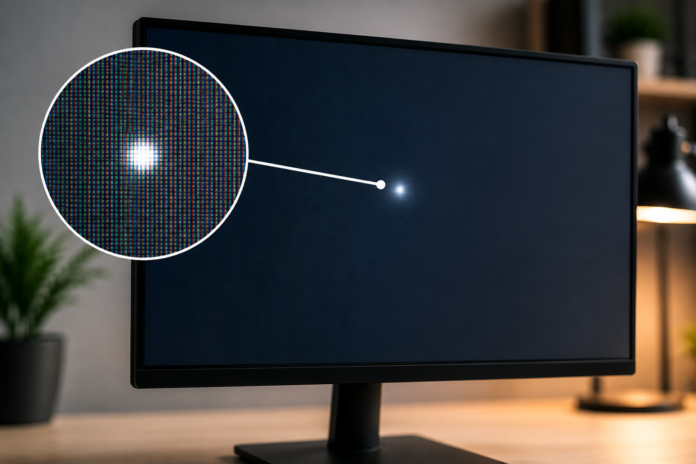


If you notice a white spot on monitor screens, the cause is usually a stuck pixel, pressure damage, backlight issue, or an internal LCD defect. The good news is that some white spots are fixable, while others require professional repair or panel replacement. The key is identifying the exact type of white spot before attempting any solution.
A white spot on monitor displays can be frustrating, especially when it appears suddenly and keeps drawing your attention during work, gaming, or watching videos. I have dealt with this issue myself on both office monitors and laptops, and I discovered that not every white spot means the monitor is dying.
In this guide, I will show you exactly how to diagnose the problem, determine whether it is repairable, and apply the most effective fixes based on the actual cause.
What Does a White Spot on Monitor Mean?
A white spot is an area on the display that appears brighter than the surrounding screen. Depending on the cause, it may look like:
- A tiny bright dot
- A small white patch
- A cloudy bright area
- A glowing circle
- An irregular white mark
Unlike dead pixels, which usually appear black, white spots actively emit or leak light. In many cases, the issue originates from the LCD panel, backlight system, or internal display layers.
Skimmable Summary
A white spot on monitor screens is typically a bright area caused by light leakage, pressure damage, a stuck pixel, or a backlight problem. The appearance of the spot often reveals the underlying issue.
Why Is There a White Spot on My Monitor?
Pressure Damage
Pressure damage is one of the most common causes of white spots on LCD screens.
I often see this happen when:
- Someone presses too hard while cleaning
- A laptop closes on an object
- Heavy items are placed against the screen
- The monitor experiences impact during transport
Pressure can deform internal LCD layers and create permanent bright spots.
Backlight Bleeding
LCD monitors use a backlight behind the panel. When diffuser layers become uneven or damaged, light leaks through specific areas and creates bright patches.
Stuck Pixel
A stuck pixel remains permanently illuminated in one color. In some cases, it appears white and is often mistaken for a white spot. Unlike larger pressure marks, a stuck pixel is usually a tiny pinpoint.
Hot Pixel
A hot pixel is a pixel that remains permanently lit. It often appears bright white against dark backgrounds.
LCD Layer Damage
Internal LCD layers can separate, deform, or deteriorate over time. This may create localized bright areas that look like white spots.
Manufacturing Defect
Sometimes the monitor leaves the factory with diffuser, bonding, or panel uniformity defects. If you notice the issue shortly after purchase, warranty coverage may apply.
Skimmable Summary
Most white spots on lcd monitor panels result from pressure damage, backlight irregularities, stuck pixels, or LCD layer defects. Identifying the shape and size of the spot helps determine the root cause.
How Can I Identify the Exact Cause of the White Spot?
I recommend performing these tests before attempting any fix.
Step 1: Display a Black Screen
Observe the spot carefully.
| Observation | Likely Cause |
|---|---|
| Tiny bright dot | Stuck Pixel |
| Large glowing patch | Backlight Issue |
| Irregular bright area | Pressure Damage |
| Circular hotspot | LED Backlight Problem |
Step 2: Display Solid Colors
Test:
- Red
- Green
- Blue
- Black
- White
If the spot changes appearance, it may be a pixel issue rather than physical damage.
Step 3: Check Different Viewing Angles
If the spot becomes less visible at certain angles, internal panel defects or dust may be involved.
Skimmable Summary
The fastest way to diagnose a white spot is to run full-screen color tests and inspect the spot’s size, shape, and behavior on different backgrounds.
White Spot vs Dead Pixel vs Stuck Pixel: What’s the Difference?
| Issue | Appearance | Fixable? |
| White Spot | Bright patch or area | Sometimes |
| Dead Pixel | Black dot | Rarely |
| Stuck Pixel | Colored or white dot | Often |
| Hot Pixel | Permanently bright dot | Sometimes |
A dead pixel usually appears black because it no longer receives power, whereas a stuck or bright pixel remains illuminated.
Skimmable Summary
Dead pixels are black, stuck pixels remain lit in a specific color, and white spots are typically larger brightness defects caused by panel or backlight issues.
How to Fix a White Spot on Monitor?
Fix #1: Clean the Screen Properly
Sometimes dust, residue, or smudges mimic white spots.
Steps:
- Turn off the monitor.
- Use a microfiber cloth.
- Apply screen cleaner to the cloth, not the display.
- Wipe gently.
Avoid applying pressure.
Fix #2: Run a Pixel Test
Use pixel testing websites or monitor diagnostic software.
This helps determine whether the issue is:
- Stuck pixel
- Dead pixel
- Pressure mark
Fix #3: Use a Pixel Fixing Tool
If the issue is a stuck pixel, software tools such as JScreenFix may help cycle colors rapidly and restore normal function. Success is not guaranteed but worth trying.
Fix #4: Inspect for Pressure Damage
Ask yourself:
- Did the monitor recently fall?
- Was it transported?
- Did something press against the panel?
If yes, the damage is likely physical and may be permanent.
Fix #5: Lower Brightness
Reducing brightness often makes white spots less noticeable.
I have used this workaround successfully on older monitors where replacement was not immediately necessary.
Fix #6: Check Warranty Status
If the monitor is new, contact the manufacturer immediately.
Manufacturing defects and severe pixel issues are often covered under warranty policies.
Skimmable Summary
The best fix depends entirely on the cause. Stuck pixels may respond to software tools, while pressure damage and panel defects usually require repair or replacement.
Can White Spots on LCD Monitor Be Repaired?
Yes, but only in certain situations.
| Cause | Repair Success |
| Stuck Pixel | High |
| Hot Pixel | Moderate |
| Pressure Damage | Low |
| Backlight Defect | Moderate |
| LCD Layer Damage | Low |
| Manufacturing Defect | Warranty Claim |
In my experience, small stuck pixels have the highest chance of recovery. Physical LCD damage rarely improves.
Skimmable Summary
Repair success depends on the root cause. Software fixes help stuck pixels, while structural LCD damage usually requires hardware replacement.
When Should You Replace the Monitor?
I recommend replacement when:
- The spot continues growing
- Multiple white spots appear
- The defect affects productivity
- Repair costs exceed monitor value
- Warranty support is unavailable
For budget monitors older than five years, replacement often makes more financial sense than repair.
Skimmable Summary
Replace the monitor if the white spot is worsening, distracting, or expensive to repair compared to the monitor’s current value.
How Can You Prevent White Spots on LCD Monitor?
Follow these best practices:
Handle the Screen Carefully
Never press directly on the panel.
Clean Correctly
Use microfiber cloths and gentle pressure.
Transport Safely
Protect monitors with proper padding.
Avoid Excessive Heat
Heat accelerates LCD layer deterioration.
Use Reasonable Brightness Levels
Running maximum brightness continuously can contribute to uneven aging.
Skimmable Summary
Preventing white spots mainly involves avoiding pressure damage, proper cleaning, careful transport, and minimizing excessive heat exposure.
What Mistakes Should You Avoid?
Avoid:
- Pressing the screen to “push out” the spot
- Using sharp cleaning tools
- Ignoring warranty coverage
- Opening the monitor without expertise
- Believing every white spot is a dead pixel
Many DIY fixes online cause more damage than the original problem.
Skimmable Summary
The biggest mistake is applying pressure to the screen. This often turns a minor issue into permanent LCD damage.
Conclusion
A white spot on monitor screens is not always a sign that the display has failed. In many cases, the issue stems from a stuck pixel, minor backlight irregularity, or manufacturing defect. The most important step is diagnosing the cause before attempting repairs.
I always start with color tests and physical inspection because they quickly reveal whether the problem is software-related, pixel-related, or permanent panel damage. Once you know the root cause, choosing the right fix becomes much easier.
Frequently Asked Questions
Can a white spot on monitor disappear on its own?
Yes, sometimes. If the white spot is caused by a stuck pixel, it may recover naturally or respond to pixel-fixing software. In my experience, a few bright pixels disappeared after several hours of color cycling. Physical pressure marks usually do not disappear.
Are white spots on LCD monitor permanent?
Not always. Stuck pixels may be temporary, but pressure damage and LCD layer deformation are often permanent. I generally expect physical damage to remain unless the panel is replaced.
Is a white spot the same as a dead pixel?
No. A dead pixel usually appears black, while a white spot appears bright. Many users confuse stuck pixels and white spots, but they are different display issues.
Can I fix white spots on lcd monitor at home?
Yes, if the issue is a stuck pixel or minor software-related pixel problem. However, if the white spot results from pressure damage or internal panel defects, home fixes rarely work. I recommend checking warranty options before attempting repairs.
Does monitor warranty cover white spots?
Sometimes. If the white spot is caused by a manufacturing defect or appears shortly after purchase, many manufacturers provide replacement or repair options. Coverage depends on the brand and warranty policy.
Can pressure cause white spots on a monitor?
Yes. Pressure is one of the most common causes of white spots on LCD displays. I have seen this happen after laptops were closed on objects or monitors were transported without proper protection.
Read Also-: Scion xD Body Kit Modifications for Unique Styling